E01 · A visitor in a particular place
Worksheet · one-page PDF
Design one action for a real visitor. Take it from a paper sketch to a working browser prototype and find out what happens when someone else uses it.
Between Rooms
Installation · Room 02Block 1 meets on 26–28 November 2026. The Block 2 model uses five half-days over three days: one afternoon, then two full days. Block 2 dates are open. Each half-day has three teaching blocks and two breaks. Choose a session for its presentation, timetable or reading.
| Half-day model | Block 1 · 26–28 Nov 2026 | Block 2 · dates open |
|---|---|---|
| Day 1 · afternoon 14:30–18:00 | E01 · 26 NovIntroductionGoal · Predict a system’s response and recognise when an interaction has succeeded. Method · Interface walk and paired observation. Outcome · A project sentence and two sketches showing the start and the sign of success. | E06 · day 1, afternoonFrom test results to the browserGoal · Connect a test observation to an implementation decision. Method · Peer gallery walk and live HTML inspection. Outcome · One before-and-after comparison and a first local browser interaction. |
| Day 2 · morning 08:45–12:15 | E02 · 27 NovMap the flowGoal · Connect a visitor’s intention to a route, its states and a way back. Method · Scenario walkthrough and state diagram. Outcome · One interview quote, a provisional insight and a path with an undo or return action. | E07 · day 2, morningBuild the interactionGoal · Use an HTML control, CSS and a JavaScript event to implement a state change. Method · Live coding and pair tracing. Outcome · A working core action with a visible response. |
| Day 2 · afternoon 13:15–16:45 | E03 · 27 NovPrototype on paperGoal · Make a core action understandable to someone seeing it for the first time. Method · Paper simulation, short task and observation. Outcome · A tested paper flow and one revised state. | E08 · day 2, afternoonAccessible interactionGoal · Make an action operable by keyboard and its state perceivable without colour. Method · Keyboard walkthrough, zoom and narrow-screen test. Outcome · One identified barrier, a fix and a repeated check. |
| Day 3 · morning 08:45–12:15 | E04 · 28 NovStructure and visual hierarchyGoal · Make the primary action recognisable across layouts. Method · Compare visual arrangements and stress-test a narrow layout. Outcome · One component at two widths, with real content and a persistent status. | E09 · day 3, morningRetest and prepare to presentGoal · Explain a design change using a concrete observation. Method · Repeat the task and rehearse a before-and-after demonstration. Outcome · An updated prototype and evidence for the presentation. |
| Day 3 · afternoon 13:15–16:45 | E05 · 28 NovClickable prototype and test planGoal · Frame a question another person can answer by using the prototype. Method · Rehearse a neutral task and exchange facilitator roles. Outcome · A clickable version, a test question and a plan for two participants. | E10 · day 3, afternoonProject presentations and discussionGoal · Show what someone can now do and explain what you still want to improve. Method · Each student demonstrates their own project; peers try it and discuss the evidence. Outcome · Work-in-progress presentation and priorities for the final online submission. |
 Full timetable
Worksheet · one-page PDF
Worksheet · one-page PDF
Worksheet · one-page PDF
Worksheet · one-page PDF
Worksheet · one-page PDF
Use a separate copy for each independent test.
Imagine finding a piece you love at a busy exhibition. What would make you confident you can find it again? Work on the exhibition guide or choose your own situation with one similarly specific action.
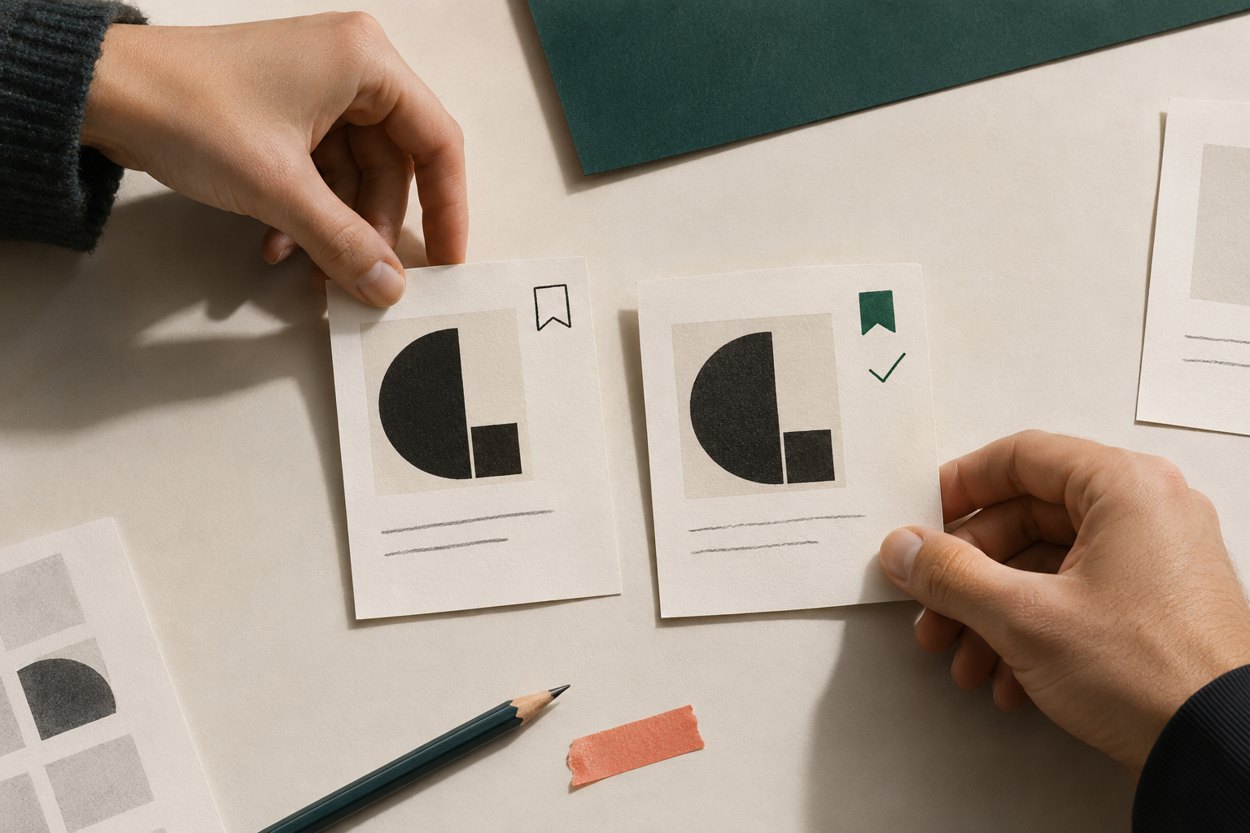
 Try the studio exerciseAI-generated teaching illustration.
Semester outcome
Frame one visitor, one situation and one action. Design two to four meaningful states, build them in the browser and show how observing another person changed a decision.
 Download the project brief and test card (PDF)
From Design Methods to interface design. Try the same method on a different design decision. Reframe one visitor’s difficulty, compare two paper versions, then use an interview insight to predict what a visitor will do. The guide includes the full instructions. Open the six studio methods.
Open a topic to revisit the idea, use a method in your project or present its four slides. In presentation view use the left and right arrow keys to move through the deck.
An exhibition visitor spots a work and wants to find it later. A saved icon only helps if the visitor can predict the action and interpret the result. Compare Engelbart’s pointing device with an early web link and a present-day control. Which conventions would have to be learned?
Method · Interaction walkthrough
Studio outcome · Draw intention, cue, action and response for a familiar interface. Show a partner where a first-time visitor needs prior knowledge.
A star can stand for a rating, a favourite or a recommendation. A signifier suggests a possible action; mapping connects a control to its effect. Immediate feedback acknowledges a change, while a persistent state lets the visitor check it later. Try Verplank’s three lenses from Moggridge’s Designing Interactions: doing, feeling and knowing.
Method · Comparative sketching
Studio outcome · Draw the same action twice with different labels or placement. Ask a partner what each will do, activate it and let them describe the result.
The exhibition has works, rooms and a visitor’s list. An information structure tells us how these relate. A flow traces a particular route; a state describes what is true at a given step. A saved item can remain on the same screen.
Method · Scenario walkthrough and state diagram
Studio outcome · Trace a route from the entrance screen to a saved work and back. Label what changes, what persists and how to undo it.
Jeff Hawkins used a pocket-sized model to explore how a handheld organiser could fit everyday activities. Choose the smallest model that reveals the uncertainty in your own design. A paper interface can already test whether a visitor finds a control or recognises a result.
Method · Paper prototyping and a moderated task
Studio outcome · Write a task that states the visitor’s goal. Run it without pointing to the control. Record one action you actually saw and one question it raises.
Which part of a work card draws your eye first: title, room, save action or saved status? Size, grouping, contrast and order express priority. A component should still communicate its hierarchy when the title wraps or the viewport narrows.
Method · Hierarchy comparison and viewport stress test
Studio outcome · Sketch two arrangements using real content. Try a long title at a small width. Ask someone to identify the main action and the saved state.
A native button exposes an action and supports keyboard activation. CSS can make focus and selection visible; JavaScript listens for activation and updates the state. In the demo the toggle keeps a stable label while aria-pressed and visible status text change.
Method · Live coding and state tracing
Studio outcome · Open the single-control demo. Activate, undo and trace the changed attribute. Replace the sample content and implement one equivalent action in your project.
Keyboard focus marks the control that will receive the next input. Selection describes a choice that persists when focus moves. A visible indication of both matters. Motion can communicate change, and a durable text or shape can communicate the same result when motion is reduced.
Method · Keyboard walkthrough and narrow-screen audit
Studio outcome · Use Tab and Shift+Tab to reach and leave the action. Activate it, move focus, then explain which state is still true. Check the flow with zoom and without relying on colour.
A participant might press a star twice, then search for the work in another view. The observable sequence gives you a starting point; the cause is still a hypothesis. In Moggridge’s People and Prototypes, the choice of prototype follows the question you want to investigate.
Method · Evidence-based critique and retest
Studio outcome · Pair a before-and-after view with an observed action. State what changed, why, and what you would need to see in a repeat test to judge the effect.
Browser demo · One control
Change the saved state, undo it and locate the event handler in the page source.
Browser demo · Complete flow
Filter the programme, inspect a work, save it for your visit and remove it again. Try it with the keyboard.
Between blocks · approximately 12 hours
Upload to Moodle · Prototype link, test task, two observations, before-and-after comparison and open question.
Checkpoint deadline
The date and time are open. Check the Moodle assignment for the announcement.
After the second block · approximately 12 hours
Upload to Moodle · Upload two files. The prototype ZIP contains index.html, its assets and a short note on how to start it. The one- to two-page process PDF shows the task, both observations, one before-and-after comparison and the retest. Credit assets, templates and adapted code.
Final submission deadline
The date and time are open. Check the Moodle assignment for the announcement.
This course awards an ungraded certificate. In Block 1, show how you design and test a visitor’s action. In Block 2, demonstrate the working interaction and explain a revision using what you observed. During studio time, you can contribute by making, testing, recording evidence and giving specific feedback to a peer. After Block 2, submit the browser prototype and process note in Moodle.
| Criterion | What your prototype or note shows |
|---|---|
| Core action | Another person can complete the intended action from the start view without coaching. |
| Feedback | The resulting state and the next possible action are understandable. |
| Implementation | The action works in the browser and with the keyboard. Focus and selection are distinguishable. |
| Iteration | An observed action led to a change. A repeat test shows the result or a remaining difficulty. |
Start with Moggridge for the design decisions behind the artefacts and Dix for the principles you can apply to your own interaction. Open the studio reading guide with page links and exercises.
Core book. Chapter 1 follows the mouse and desktop; chapter 2 includes Bill Verplank’s interaction questions. Chapter 3 follows handheld design. Chapter 10 connects observation, choice of prototype and learning.
Examine the size and form of Hawkins’s model. What can a wooden prototype let you test away from a desk?
Companion core chapter. Read from p. 10 for scenarios, p. 12 for navigation, p. 19 for layout and p. 27 for iteration.
In this 2008 essay, Norman describes the clues people use to interpret a situation. In input I2, show a visitor two versions of the save control. Which word, shape or position helps them predict what a tap will do?
In E08, inspect three of Nielsen’s 1994 heuristics before the E09 retest. For visibility of system status, find where the prototype confirms a save. For user control and freedom, try undoing it. For error prevention, check how someone distinguishes adjacent works. Give a peer the task and compare their actions with your predictions.
Use the five dimensions to think about language, visual representation, objects and space, time and behaviour.
Choose a prototype that exposes one uncertainty. Pair the resulting observation with a proposed change.
Compare command and toggle buttons. Check keyboard activation and the relationship between a stable label and a pressed state.
Consult while coding. The reference documents button types, accessible names and native behaviour.
University of London study guide (2010). Which question can your paper version answer? Try it in E03 and revisit the visitor’s mental model in E06.
Optional guided course. The public syllabus covers scenarios, local navigation, grouping and the limits of iteration. Full lessons require course access.
 History, method & sources